
If you need to run a privilege log for your project, start by making sure the privileged items each have a privileged note applied. Click the drop down next to the notes box to change from a regular to a privilege note.

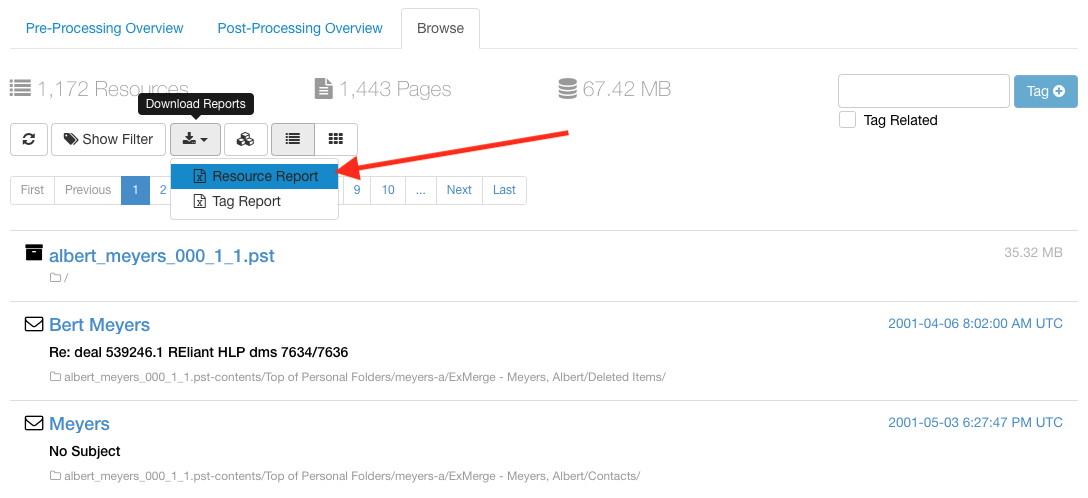
Once you've confirmed that is the case, use the tag filter or search features to bring up your privileged set. Click the report button, select resource report, then in the wizard that pops up choose to customize the fields.

In the area that opens up below, you can select the fields you want included in your report. In general, we recommend including the following fields for privilege reports:
- IIO ID
- Document Type
- Creator
- Email Recipients
- Created Date
- Title
- Original File Path
- Privilege Note

Once you have selected your report fields, click save at the bottom of the wizard and the report will begin to generate. A notification will pop up when it's done with a download button, and the report will also be available to download at any point in the future from the reports tab of the project.
Comments
0 comments
Please sign in to leave a comment.