
Creating Batches with Indexed I/O is as simple as searching or filtering for the set you want to batch, and clicking the "Create Batch" button as seen below. You must be an Admin, Review Manager, or using a User Role that allows batch management in order to access these functions.
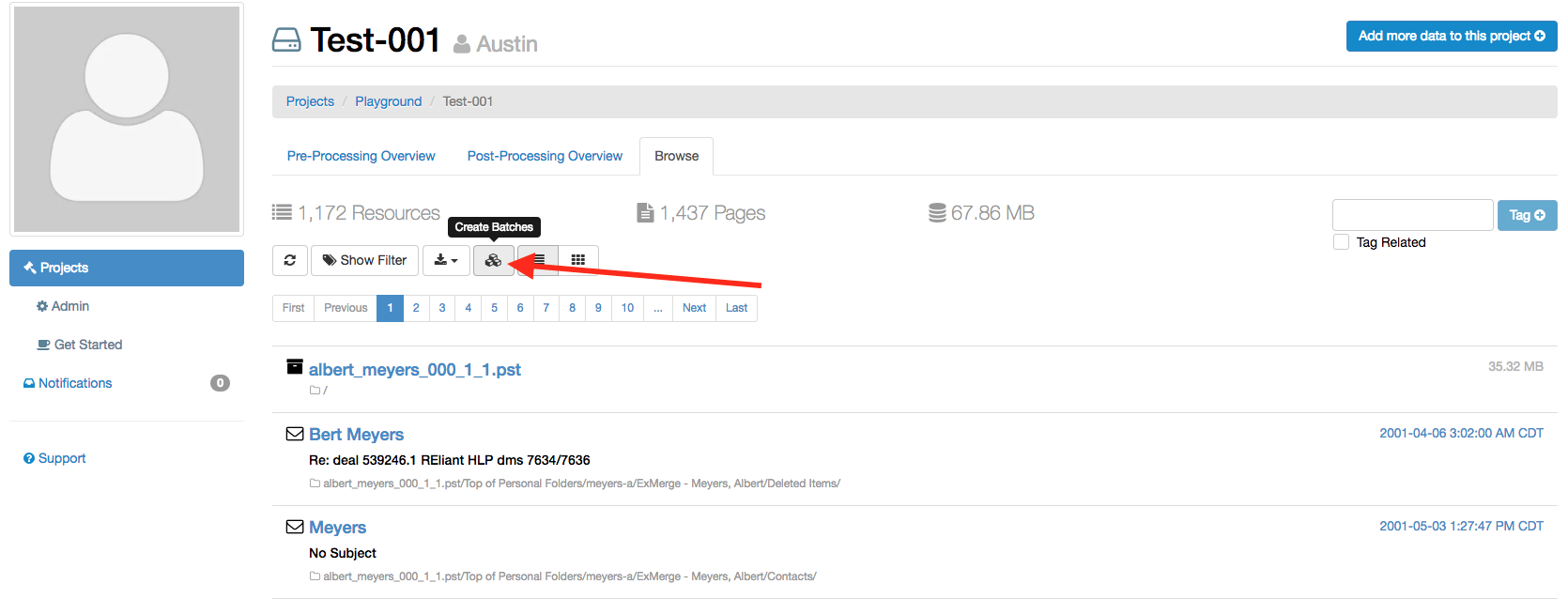
Once you click the create batch button, a wizard will open that will ask you to name the batch, and choose the size of each batch. If your searched/filtered set is larger than the number of files per batch it will split it into multiple batches.

Once you have set up your batch you can access and manage it from the "Home" tab of the project. Any users who have been assigned batches can also view and access their batches from this page.

To Assign a batch, click the "Assign" button on the right of the batch record line. When the assign dialogue box appears, enter or select the specific user(s) and/or role(s) you want to assign to the batch, then click the 'Save' button. You can also Edit, or Delete the batch.

Clicking the batch name will return all documents in the batch, and display your review progress at the top of the page. This will update as you perform your review and mark documents as reviewed. You can add additional tag filters from this view to further narrow down your set if you choose.


Comments
0 comments
Please sign in to leave a comment.